Changing Rank
Roster Generation assigns agents according to their Rank, starting with the lowest numerical rank and increasing from there. Generally it is better to have your agents with a fixed schedule ranked lower and the agents with more flexibility ranked higher. This allows agents more flexibility to be assigned where agents with fixed schedules may not be available.
What do you want to do?
Tasks in this Topic Include:
Related Tasks:
- Maintain Employee List
- Applying Availability /Preference
- Fixed Shift Selection
- Exception Calendar and Meeting Planner
- Maintaining Notes
- Setting Non-Call Availabilities
- Maintaining Employee Details
- Maintain Inactive Employees
- Employee Import / Export
- Employee Templates
- Generating Employee Reports
Change Rank
- Select Employees from the left-navigation menu.
- Select the Employee List.
- Select an employee (agent) from the employee table.
- Select the Edit button located at the bottom of the table.
- Select the Change Rank tab.
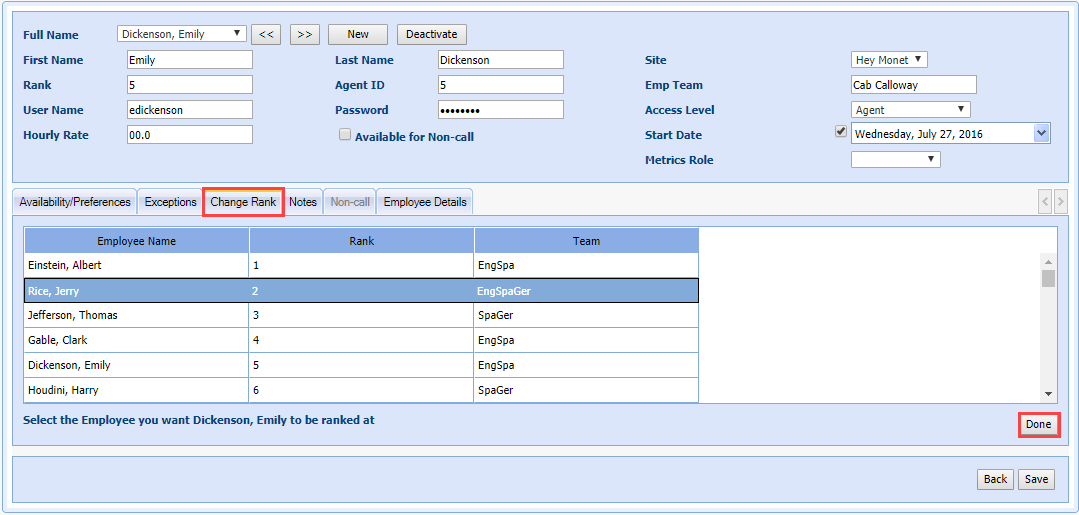
Change Employee Rank
- Select the appropriate rank.
- Select Done. A confirmation message is displayed.
- Select OK to change the rank of the selected employee.
- Select Cancel to cancel the process.